Values only, as import tools expect
Formulas are replaced by their last calculated results, and fonts, colours and merged cells are dropped. What remains is the plain table a CRM, online shop or accounting program asks for when it accepts CSV only.
Leave with one sheet's values as a plain text table that import tools, databases and scripts can read.
Converting XLSX to CSV strips a spreadsheet down to its raw values in a plain text file that databases, scripts and import tools can read. A CSV holds exactly one table, so only one sheet can be represented per file, and everything that is not a cell value (formulas, colours, charts) is left behind.
Transfers use HTTPS, and files converted on the free tier are deleted within 24 hours, so the result is not a long-term archive. Quality depends on the source file, so open the CSV file once before you share it.
XLSX (Office Open XML Workbook)
Excel's default workbook format, a zipped collection of XML files defined by the Office Open XML standard. Cells carry typed values, formulas and formatting, and a single file can contain many sheets along with charts, merged cells and named ranges.
CSV (Comma-Separated Values)
Comma-separated values, a plain text format in which each line is a row and a delimiter separates the fields. It has no data types, no styling and no official single standard, although RFC 4180 describes the most common conventions.
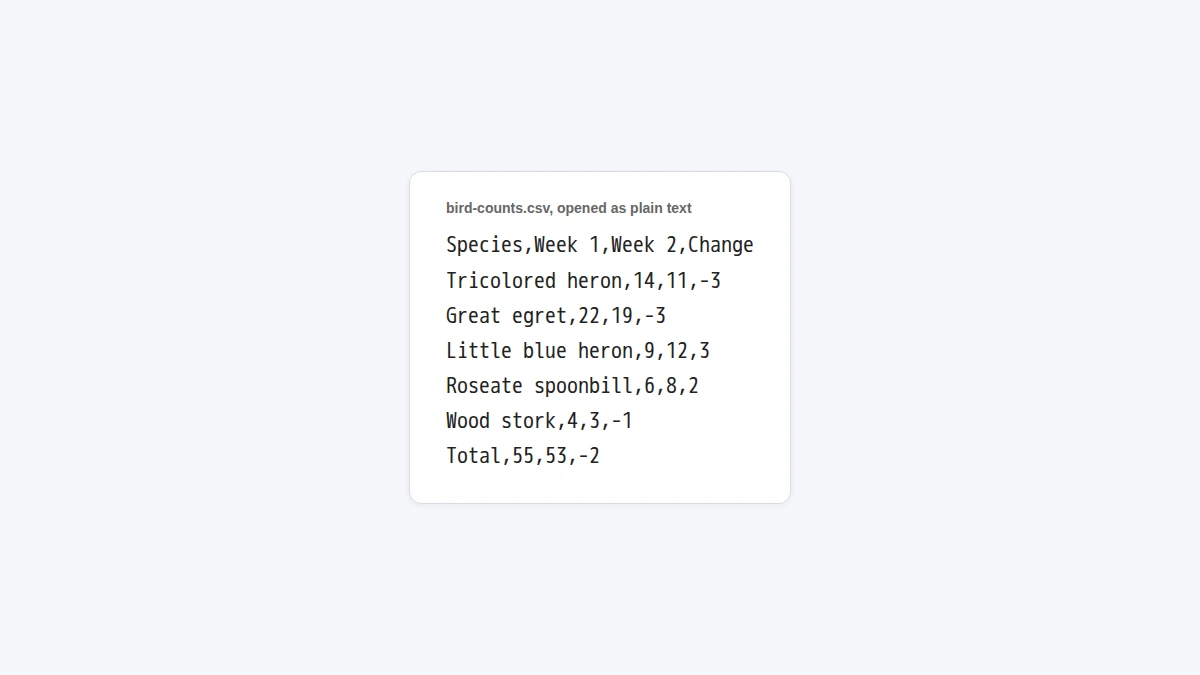
A small spreadsheet with a styled header, formulas and a total row, converted on indox.org
Formulas are replaced by their last calculated results, and fonts, colours and merged cells are dropped. What remains is the plain table a CRM, online shop or accounting program asks for when it accepts CSV only.
A CSV holds exactly one table. Move each sheet into its own workbook in Excel, add those files together, and every XLSX returns its own CSV, so no sheet is silently left out.
The conversion runs on indox infrastructure with nothing installed, so a workbook can be turned into CSV from a computer that has no spreadsheet program, and one file needs no account.
A single-sheet XLSX is the safe input. If the file has several sheets, save the one you need as its own workbook, then choose it from your device or drop it on the box.
Confirm CSV as the output format, then convert. Several workbooks added together are each turned into a CSV file of their own.
Download the result and open it in a text editor, not Excel, to see what was written: which sheet, which delimiter, and whether leading zeros and long numbers are intact.
You get a plain text file with one row per line, holding the values of a single sheet. Dates, currencies and percentages are written out as text for the receiving program to interpret, and values are often stored as displayed, so a rounded figure may be saved rounded. Formatting, charts and other sheets are left behind, so keep the XLSX as your master file. CSV has no agreed delimiter or encoding, so check both against what your import expects.
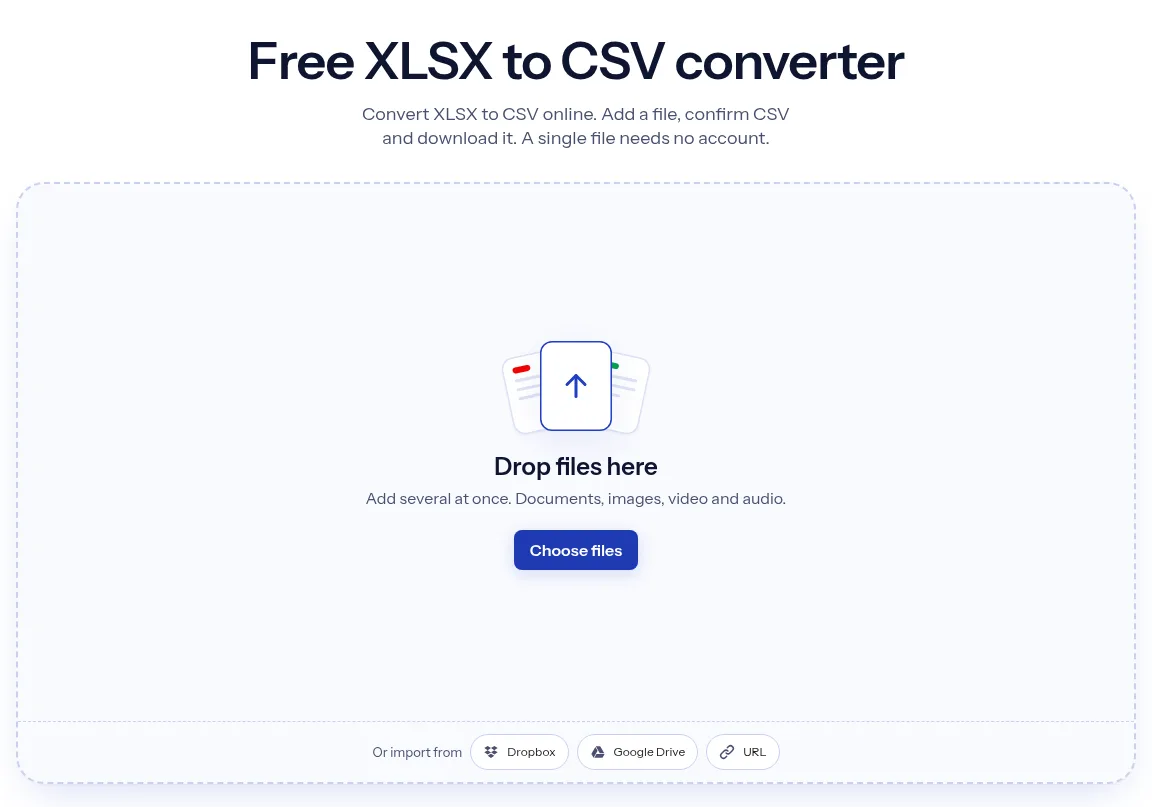
The upload box shows the live size limit before you add a file. Signing in raises it, and paid plans raise it further.
XLSX in, CSV out. Pick another output on the converter if you need a different format.
Files are encrypted in transit over HTTPS and processed on indox infrastructure.
Free-tier files are deleted automatically within 24 hours after the job finishes.
| What you see | Why | What to do |
|---|---|---|
| Only one sheet came out | A CSV holds one table, and the first sheet is the one exported | Move the sheet you need to the front in Excel, or save each sheet as its own workbook |
| Numbers look rounded | Values are saved as they are shown on the sheet | Show the full precision in the cells before converting |
| Dates look different | A CSV holds text, so a date is written the way the cell shows it | Format the date column as text in ISO form, such as 2025-04-03, before converting |
| The formulas are gone | The cell holds the calculated result, and formula export is off by default | Keep the XLSX as your working file |
| Compared on | XLSX | CSV |
|---|---|---|
| Standard | Office Open XML SpreadsheetML, ISO 29500 and ECMA-376 | No formal specification; RFC 4180 documents common usage and registers text/csv |
| Sheets | A workbook holds one or more worksheets | One table per file |
| Formulas | A cell holds a value or a formula, usually with a cached value | Only the fields, as text |
| Format | Structured XML | Plain text |
Facts checked on October 16, 2026
No tool matches that search.
The cell values are kept, but everything else is lost. Formulas, formatting, charts, images, comments, data validation and all sheets except one have no place in a CSV. Values are often written as displayed, so a figure rounded to two decimals on screen may be stored rounded. Keep the XLSX as your master file.
Each sheet needs its own CSV file, because the format cannot hold more than one table. The reliable approach is to split the workbook first: in Excel, move or copy each sheet into its own workbook, then convert those files individually. Trying to stack sheets in one CSV only works if they share identical columns.
Excel reinterprets the text using your computer's regional settings. A CSV stores a date as characters such as 03/04/2025, and Excel decides whether that is 3 April or 4 March. Writing dates in ISO form (2025-04-03) before converting avoids the ambiguity, as does importing through Data, From Text/CSV and setting the column type.
The zeros are usually in the file as long as the cells showed them in the workbook, and it is Excel that drops them on reopening. Open the CSV in a text editor to confirm. To view it in Excel without losing them, import it with Data, From Text/CSV and set that column to Text instead of double-clicking the file.
They differ only in character encoding. CSV UTF-8 stores text as Unicode, so accented letters, Arabic, Persian and Chinese are preserved. The plain CSV option in Excel uses a regional code page that turns unsupported characters into question marks. Choose UTF-8 unless the system receiving the file specifically demands something else.
The delimiter in the file does not match the one Excel expects. In many European locales the list separator is a semicolon because the comma is the decimal mark, so a comma-separated file lands in column A. Use Data, Text to Columns, or import the file and pick the delimiter yourself.
Drop files here
Add several at once. Documents, images, video and audio.