No file open


Split PDF

or drop a file anywhere here

Files other than PDF are converted first. Signing in raises the size limit.

You add
One PDF
You set
The pages to split after
You get
A ZIP with each part as a PDF

Splitting a PDF cuts one document into two or more smaller PDF files at the page boundaries you choose. On this page you add one PDF, type the last page of each part in the Split after pages box, and run the job. Entering 2,4 for a six-page file gives three parts: pages 1 to 2, pages 3 to 4 and pages 5 to 6. All parts arrive together in one ZIP archive. A single split needs no account. If you want one file back, such as a single chapter or the document without its cover sheet, Extract pages or Remove pages fits better than a split.

What can you do when you split a PDF?

Cut at any page you name

The Split after pages box takes page numbers separated by commas. Each number is the last page of a part, so 3 ends the first file after page 3 and the next file starts on page 4. Use numbers below the last page, because a part has to follow each one.

Make as many parts as you need

One number gives you two files, two numbers give you three, and so on. For equal chunks, list every boundary yourself. Typing 5,10,15 on a 20-page file gives four parts of five pages each.

Download every part at once

The result is one ZIP archive with each part inside as its own PDF. You download once, then unzip the archive on your computer or phone to open the files.

Try again with different pages

The job writes new files and leaves the PDF on your device as it is. If a cut lands on the wrong page, choose Convert another, add the same file again and enter new numbers.

What splitting keeps and what it changes

Stays the same

  • Page content, in the same order across the parts.
  • Every page lands in exactly one part.
  • Form fields. When the PDF has a form, each part keeps the fields whose widgets sit on its pages.
  • The file on your device.

Changes

  • One PDF becomes a ZIP archive with one PDF per part.
  • The number of parts is the number of split points plus one, because the last page always ends the final part.
  • Each part is a separate, smaller file, so a document-wide feature such as one table of contents no longer spans them.

What to type in Split after pages

You wantTypeResult
Two halves of a 6-page file3Pages 1 to 3, then pages 4 to 6
Three parts of a 6-page file2,4Pages 1 to 2, 3 to 4 and 5 to 6
One file per page of a 6-page file1,2,3,4,5Six single-page files
A cover page and the rest1Page 1, then everything after it

How to split a PDF in 3 steps

  1. Choose the PDF to split

    Drop one PDF on the upload box, or click the box to browse for the file.

  2. Type the split points

    In Split after pages, enter the last page of each part with commas between them, such as 2,4.

  3. Run the split and download the ZIP

    Press Run Split PDF and wait for the progress bar to finish. Then choose Download to save the ZIP with your parts.

Placeholder for the Split PDF demo, which will show a real run

Why split a PDF with indox?

The split tool asks for one thing: the pages where the document should be cut. That list of pages is all you enter. The note under the box tells you before you start that the result downloads as a ZIP, so the archive is no surprise. A single split runs without an account, the upload travels over HTTPS, and files on the free tier are deleted automatically within 24 hours after the job finishes. This page also states what the tool leaves out. It has no split-by-bookmark or split-by-size mode and no password box, so you can tell before you upload whether it suits your file.

  • One box to fill in: the pages to split after
  • All parts delivered in a single ZIP
  • One split works without an account
  • Upload sent over HTTPS
  • Free-tier files removed within 24 hours of the job
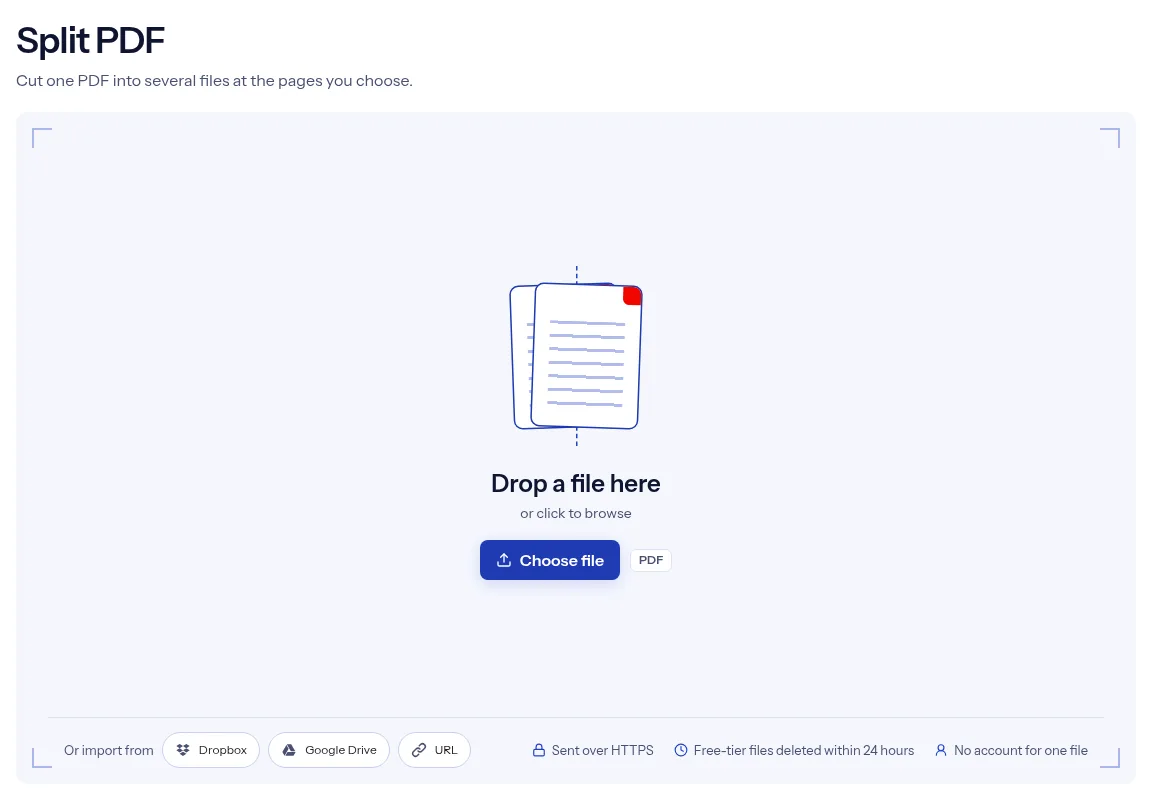
The indox Split PDF tool on indox.org, ready for your file

What are the limits when you split a PDF?

Size
The free tier has a file size limit. Signing in raises it, and paid plans raise it further.
Formats
This tool works on PDF files. To change a file's type, use the PDF converter.
Privacy
Files are encrypted in transit and processed on indox infrastructure.
Deletion
Free-tier files are deleted automatically within 24 hours after the job finishes. Signed-in output stays in your history for your plan's retention period.

Limits worth knowing

  • The download is a ZIP archive, even when a split makes only two files. Unzip it to open the parts.
  • The tool splits only at the page numbers you type. It has no mode that splits every few pages by itself, by bookmark or by file size.
  • The tool shows no page thumbnails. Open the PDF in a viewer first and write down the page where each part should end.
  • There is no password box. If the PDF needs a password to open, remove it with Unlock PDF and split the unlocked copy.
  • The tool gives no report on bookmarks or fillable form fields. If your document relies on them, open each part and check before you send it.

When the result is not what you expected

What you seeWhyWhat to do
The download is a ZIP, not a PDFThe result holds several filesUnzip it on your device to open each part.
The job stops with a page errorA number is zero, past the last page or not a numberAdd the PDF again and use numbers below the last page, separated by commas.
Fewer parts than you expectedOnly the numbers you listed make a cutCount your split points. Three numbers give four parts.
You need splits by size or bookmarkThis page cuts only at the page numbers you typeFind the pages in a viewer first, then list them here.
The file asks for a passwordThe page has no field for oneRemove it with Unlock PDF, then split the open copy.

What do the free and paid plans add?

Free

  • All converters
  • Daily credit refresh
  • Email support

Basic

  • Access to all features
  • AI Extract
  • Priority conversions
  • Email support
Highest priority

Premium

  • Everything in Basic
  • Highest priority queue
  • Larger file limits
  • Priority support

Pay-As-You-Go

  • No subscription
  • Credits never expire
  • Opt-in auto-refill
  • Access to all features
See prices

Who splits PDFs?

  • Office staff with batch scans

    The scanner saved a stack of separate documents as one PDF. Split after the last page of each document to get one file per document.

  • Teachers and course leaders

    A course pack or textbook PDF is easier to share by chapter. Enter the last page of each chapter and hand out the parts one at a time.

  • Anyone facing an attachment limit

    An email or upload form rejects a large PDF. Cut it into smaller parts and send them in separate messages.

When to split, and when to pick another tool

  • A combined scan holds several invoices or contracts, and each one needs its own file.
  • A long manual should go out one chapter at a time.
  • A PDF is too big for one email and has to be sent in pieces.
  • Several reviewers each need a different section, and every section is needed by someone.
  • You need only one section of the document. Extract pages returns that section as a single PDF with no ZIP.

Where can I read more?

Sources

Facts checked on October 16, 2026

Do it all with indox

View all 123 tools

Split PDF FAQs

How do I tell the tool where to split?

Type the last page of each part in the Split after pages box, with commas between the numbers. For example, 2,4 ends the first part after page 2 and the second part after page 4.

Why is my download a ZIP file?

A split always produces more than one PDF, so the tool packs the parts into one archive. Unzip it to get the separate files.

Can I split a PDF into single pages?

Yes, by listing every page number except the last one. For a four-page file, enter 1,2,3. This is practical for short documents only.

Can I split every few pages or by bookmark automatically?

No, this page has no automatic mode. To get equal parts, type each boundary yourself, such as 10,20,30.

Can I split a password-protected PDF?

Not directly, since the tool cannot take a password. Run Unlock PDF on the file first, then split the result.

Do I need an account to split a PDF?

No, the tool is on the free tier and a single split runs without signing in. Signing in and paid plans raise the limits.

What happens to my files after the split?

On the free tier, the uploaded PDF and the ZIP are deleted automatically within 24 hours after the job finishes. Both travel over HTTPS.

Should I split, extract or remove pages?

Split when you need every part as its own file. Use Extract pages to keep a few pages as one new PDF, and Remove pages to drop a few pages and keep the rest.