Count pages or measure them
Type page-count to learn how many pages the PDF has, or page-dimensions to get the dimensions of its pages. Each is its own lookup with its own result file.
or drop a file anywhere here
Files other than PDF are converted first. Signing in raises the size limit.
Analyze PDF answers one narrow question about a document and leaves the document alone. You add a PDF, type the name of an aspect in the Aspect box and run the job. The answer downloads as a JSON file. The box accepts eight names: annotation-info, basic-info, document-properties, font-info, form-fields, page-count, page-dimensions and security-info. Each run looks up one of them. The name has to be typed exactly, in lower case and with its hyphen, because the tool rejects anything else. A single lookup needs no account. When you want every area in one file, Get PDF Info runs the complete report.
Type page-count to learn how many pages the PDF has, or page-dimensions to get the dimensions of its pages. Each is its own lookup with its own result file.
The font-info aspect reports on the fonts in the document. The form-fields aspect reports on its fillable fields, a useful look before you open the file in Fill PDF Form.
Use document-properties for the properties of the document and security-info for its security details. Two more names, basic-info and annotation-info, cover basic facts about the file and its annotations.
The answer is written as JSON on a single line, with no indentation. That suits scripts and automation. To read it yourself, paste it into a JSON formatter.
| You want to know | Type in Aspect | The JSON holds |
|---|---|---|
| How many pages | page-count | pageCount. |
| PDF version and file size | basic-info | pageCount, pdfVersion and fileSize. |
| Title, author and dates | document-properties | title, author, subject, keywords, creator, producer, creationDate and modificationDate. A value the file does not store comes back as null. |
| Which fonts the pages use | font-info | fontCount and a list of font names as the pages label them, which are often short codes such as F1. |
| Whether the PDF has a form | form-fields | fieldCount, hasXFA and isSignaturesExist. |
| Comments, links and other markup | annotation-info | totalCount and typeBreakdown. |
| The size of each page | page-dimensions | A width and a height for every page. |
| Whether the file is encrypted | security-info | isEncrypted. For an encrypted file also keyLength and four flags: preventPrinting, preventModify, preventExtractContent and preventModifyAnnotations. |
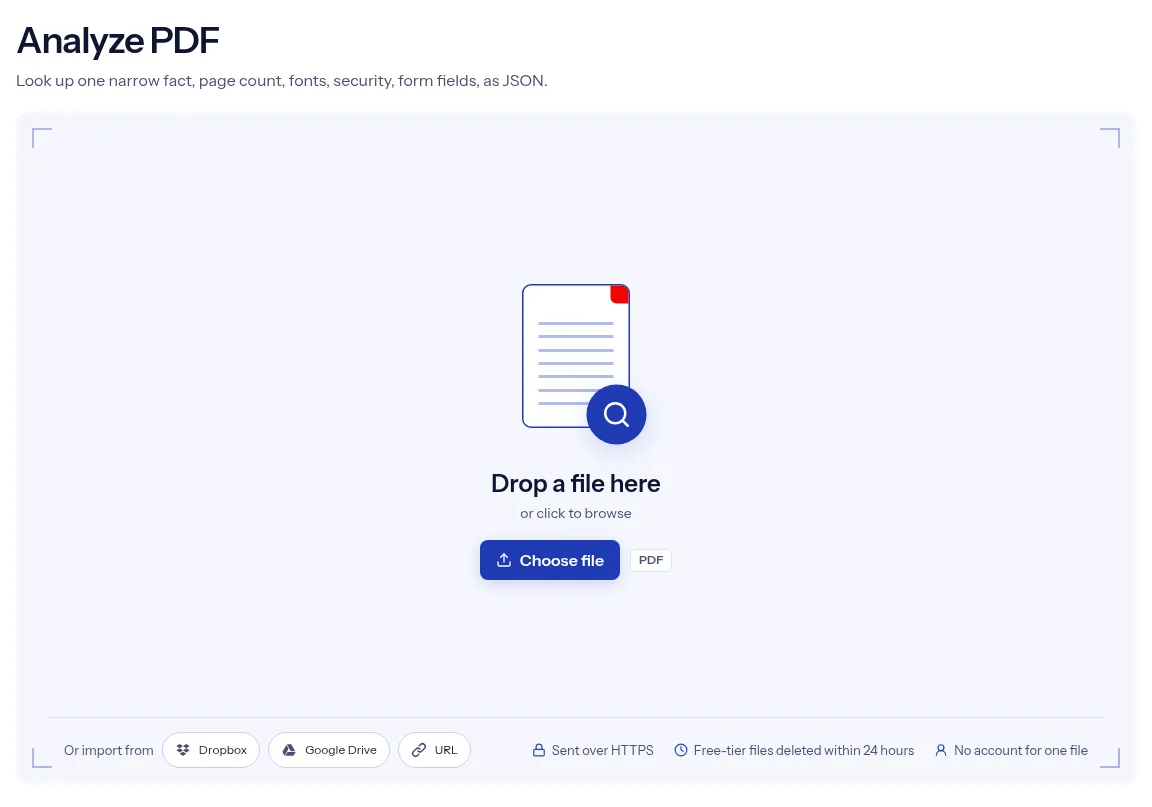
Drag a PDF onto the upload box, or use Choose file to select it.
In the Aspect box, enter one name from the list printed under it, for example page-count. Copy the spelling exactly.
Press Run Analyze PDF. After the progress bar completes, select Download to save the JSON answer.
The Analyze PDF page asks for one word and returns one answer. The eight accepted names are printed under the Aspect box, so you do not need a manual to find them. Because each run covers a single aspect, the result file holds only what you asked about. That helps when a script reads the answer, or when you care about one detail such as the fonts. One lookup runs without an account, the upload is carried over HTTPS, and files from free-tier lookups are deleted automatically within 24 hours after the job finishes. The page is also open about its rough edges, which are listed under the limits below.
| What you see | Why | What to do |
|---|---|---|
| The job fails as soon as it runs | Aspect is a plain text box. A typo, a capital letter or a name outside the eight listed ends the job with an error | Type one of the eight names exactly as written in the table above, in lowercase with hyphens. |
| The fonts list shows F1, F2 and similar | font-info returns the names the pages use for their fonts, not the font families | Run Get PDF Info. Its per-page report gives each font's name and whether it is embedded. |
| title or author is null | The PDF stores no value for it | This is normal. Set one with Edit PDF Metadata if you need it. |
| You need several facts | One run answers one aspect | Run the tool once per aspect, or use Get PDF Info for everything in one report. |
| The file asks for a password | The form has no password box | Remove the password with Unlock PDF first. |
An automation step needs the page count before it routes a file. One lookup returns that answer as JSON, with nothing else to parse around.
Before a file goes to print, you check which fonts it uses and what size its pages are. Run font-info, then page-dimensions.
You need to know whether a PDF has fillable fields or security settings before it is sent out. The form-fields and security-info aspects answer those two questions.
Facts checked on October 16, 2026
No tool matches that search.
Eight: annotation-info, basic-info, document-properties, font-info, form-fields, page-count, page-dimensions and security-info. The same list appears under the Aspect box.
Check the aspect name first. It must match one of the eight names exactly, in lower case and with its hyphen. Select Try another, add the PDF again and retype it.
No. The Aspect box takes a single name per run. Select Convert another after the download and repeat with the next name.
Analyze PDF returns the one aspect that you name. Get PDF Info has no options and answers everything in one report.
JSON, saved as a file with the .json extension. The content sits on a single line without indentation.
No. The lookup only reads the document. Nothing is written back into the PDF, and no new PDF is created.
Only after you unlock it. This page has no password field, so run Unlock PDF first and analyze the copy it gives you.
One analysis runs without an account. Uploads use HTTPS, and on the free tier the PDF and its JSON answer are deleted automatically within 24 hours after the job finishes.