Choose WAV or FLAC as the output format
The Options card shows Output format with two buttons, WAV and FLAC. WAV is selected when the card opens. Pick the one your program or device can open.
Add one MP3, WAV or FLAC file, choose WAV or FLAC as the output format and download the converted file.
Drop a file here
Converting audio means saving the same recording in a different file format, for a player or an upload form that rejects the one you have. Add one MP3, WAV or FLAC file, choose WAV or FLAC under Output format and press Run Convert Audio. The download is a new file, and your own copy stays as it was.
The Options card shows Output format with two buttons, WAV and FLAC. WAV is selected when the card opens. Pick the one your program or device can open.
An MP3 can go to either format, which helps when a program refuses MP3. The new file stores the sound the MP3 still has, and what the encoder removed stays removed.
Once you add a file, a card shows its name and its size in MB. Press Replace if you picked the wrong recording. The file picker lists .mp3, .wav and .flac files.
Press Run Convert Audio and the page shows Processing with a percentage while indox servers do the work. When it says Conversion complete, press Download to save the new file, or Convert another to start again.
This page offers two outputs, WAV and FLAC. The table says which one fits each job.
| You need | Pick | Why |
|---|---|---|
| To edit the recording in an audio program | WAV | WAV holds uncompressed PCM audio, which editors read without decoding work. |
| An archive copy that wastes no space | FLAC | FLAC is lossless and takes less storage than WAV. |
| A lossless file for a player that does not read FLAC | WAV | Test the download on the device first, because support for FLAC differs between players. |
| A smaller file for sharing or a phone | Another page | This page has no MP3 output. Use WAV to MP3, after turning a FLAC into WAV here. |
| Better sound from an MP3 | Neither | Converting cannot add back what the MP3 lost. Start from the original recording if you have it. |
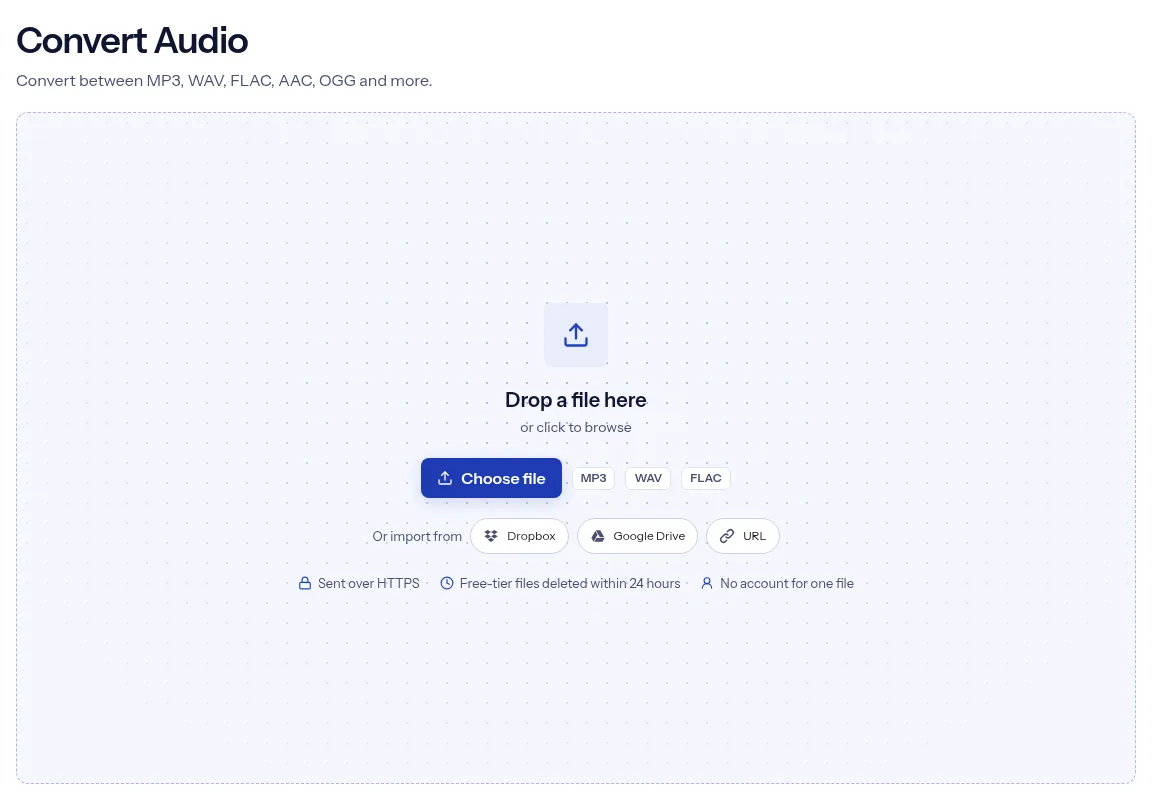
Drop one MP3, WAV or FLAC file on the box above, or click it to browse. A file card then shows the name and the size in MB.
In the Options card, pick WAV or FLAC under Output format. WAV is already selected, so switch to FLAC if your file is a WAV.
Press Run Convert Audio and wait while the page shows Processing. When it says your file is ready, press Download.

The page has one setting, Output format, with two buttons, so you see everything the job will do before you start it. One file converts without an account, inside the free quota. Your file is encrypted in transit, and on the free tier indox deletes it automatically within 24 hours after the job finishes.
Most surprises come from what the source file could already hold.
| What you see | Why | What to do |
|---|---|---|
| The WAV is far bigger than the MP3 | WAV stores the audio uncompressed | Pick FLAC instead if you need a lossless file that takes less space. |
| The sound is no better than the MP3 | The MP3 encoder already removed that detail | Use the original recording, not the MP3, as the source. |
| Cover art or tags are missing | The file is written as audio only, and each format stores tags its own way | Open the download in your player and add the tags or the picture again. |
| A player will not open the FLAC | Not every player reads FLAC | Choose WAV as the Output format and convert the file again. |
| You need an MP3 and only WAV and FLAC are offered | MP3 is not an output on this page | Use WAV to MP3, after turning a FLAC into WAV here. |
Your editing program or sampler asks for WAV, and the clip you were sent is an MP3 or a FLAC. Convert it to WAV and import the download.
You have WAV recordings and want them in a format that compresses the audio without discarding any of it. Choose FLAC, then keep the WAV until you have listened to the result.
A player or an upload form rejects the format you have. Convert the file to the other format and try it again.
Facts checked on October 16, 2026
No tool matches that search.
No. An MP3 encoder discards the parts of the sound that are harder to hear, and that data is gone from the file. The WAV or FLAC stores the audio the MP3 still has.
A WAV file normally holds uncompressed PCM audio, and MP3 is a compressed format made for small files. The extra size comes from storing the audio uncompressed and adds no detail to the recording.
Both formats can hold audio with nothing discarded. FLAC compresses it, so the file takes less storage, and it has its own system for tags and cover art. WAV is very widely used, so check that your player or device opens FLAC before you switch.
The FLAC format does not discard audio: decoding a FLAC file gives back what was encoded. This page does not show the sample rate or bit depth of the file it writes, so listen to the download before you delete the WAV.
The file picker takes .mp3, .wav and .flac files. An MP3 can go to WAV or FLAC, a WAV goes to FLAC and a FLAC goes to WAV.
The three formats store tags differently: MP3 uses ID3, WAV uses an INFO chunk and FLAC has its own tag system. Open the download in your player and check the title and the cover art.
It helps. Audio loses quality each time it is encoded as MP3, so edit a WAV or FLAC copy and export an MP3 only when you are done.
No. One file converts without signing in, inside the free quota. An account raises the file size limit and paid plans raise it further.
It is encrypted in transit and processed on indox servers. On the free tier, indox deletes it automatically within 24 hours after the job finishes. Output from a signed-in account stays in its history for the plan's retention period.