Keep the nesting of the outline
Chapters, sections and subsections come out in the same tree they have in the PDF. Every entry carries a children list, so a section sits inside its chapter and not beside it.
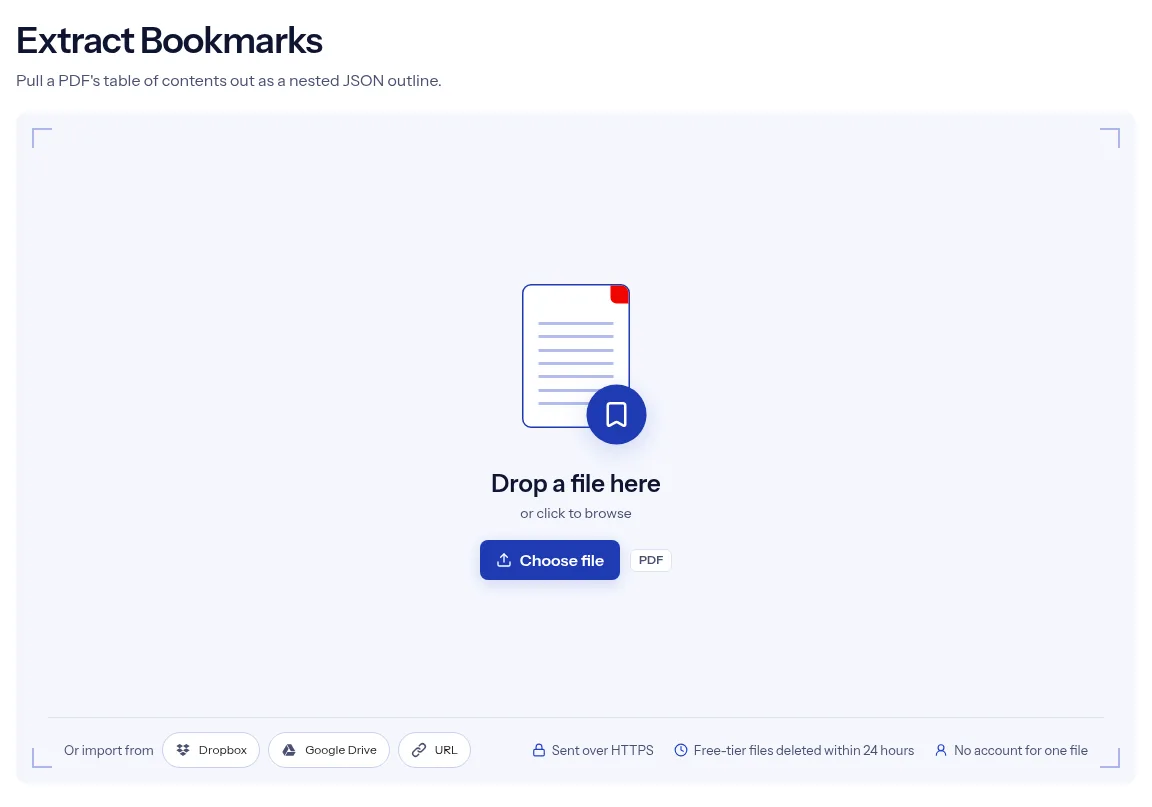
or drop a file anywhere here
Files other than PDF are converted first. Signing in raises the size limit.
Bookmarks are the clickable outline that many PDFs show in a side panel, often used as a table of contents. Extract Bookmarks copies that outline out of the document and saves it as JSON. You add one PDF and run the tool, with no options to set. Each bookmark becomes an entry with a title, a pageNumber and a children list, and the children list holds the bookmarks nested under it. The PDF is only read. A single export runs without an account. This tool exports the outline as it is. To write or replace one, use Edit Table of Contents.
Chapters, sections and subsections come out in the same tree they have in the PDF. Every entry carries a children list, so a section sits inside its chapter and not beside it.
Each entry has a pageNumber next to its title. Together they form a page index of the document that a script or a spreadsheet import can read.
Because the result is JSON, you can load it into code, turn it into a menu for a web page or keep it as a record of how a long document is organized.
An export asks for no page ranges, levels or formats. Add the PDF and press Run Extract Bookmarks to start.
Drop a PDF that has bookmarks on the upload box, or select Choose file to find it.
This tool has no settings. Press Run Extract Bookmarks and let the progress bar finish.
Choose Download to save the JSON file. Open it in a JSON viewer to see the tree of titles and page numbers.
An outline is structured data, and this page treats it that way. You get the bookmarks as a tree with three named parts per entry: title, pageNumber and children. Nothing has to be configured, so there is a single step between upload and download. The JSON can feed a script, a documentation site or a simple check that a long report has the chapters it should. One export runs without an account, the PDF is uploaded over HTTPS, and on the free tier both the upload and the outline file are deleted automatically within 24 hours after the job finishes. The limits below say where the export stops.
| What you see | Why | What to do |
|---|---|---|
| The file contains only [] | The PDF has no bookmark outline | Build one with Edit Table of Contents. |
| Several bookmarks show pageNumber 1 | A bookmark whose target page cannot be found is reported as page 1 | Click those bookmarks in a viewer to find their real targets before you reuse the numbers. |
| Some titles show codes such as \u00e9 | The JSON stores letters outside basic English as escape codes | Open the file in a JSON parser or viewer, which turns the codes back into letters. |
| Edit Table of Contents will not take the JSON | That tool wants one line per entry in the form title|page | Retype the entries as title|page lines, and add a parent number for nested ones. |
| The file asks for a password | The page has no password box | Remove the lock with Unlock PDF, then export from the open copy. |
You maintain a long manual and want its structure outside the PDF. The JSON outline shows every heading level and the page each heading points to.
A web viewer needs a chapter menu for each PDF. Load the exported tree and build the menu from its titles and page numbers.
A catalog record should list what a digitized book contains. The outline gives you chapter titles with their pages, ready to turn into that record.
Facts checked on October 16, 2026
No tool matches that search.
A JSON list of bookmarks. Each one has a title, a pageNumber and a children list that holds the bookmarks nested under it.
No. The tool reads the outline and copies it. The document and its bookmarks stay as they are.
There is no outline to copy. The page does not flag this on its own, so open the downloaded file and look for entries.
Not with this file directly. Edit Table of Contents takes typed lines made of a title, a vertical bar and a page, with an optional parent line number. Convert the JSON into that form first.
Yes. A bookmark that sits under another appears inside the children list of its parent, however deep the outline goes.
Characters outside basic English are saved as escape codes in the JSON. Open the file in a JSON viewer or parse it in code, and the original letters return.
First remove the open password with Unlock PDF. This page offers no field for a password.
It carries the free badge, so one export runs without an account. Uploads go over HTTPS. Within 24 hours after the job finishes, free-tier files are deleted automatically, the PDF and the outline both.