Choose how hard to compress
The Compression level field takes a number from 1 to 9. Level 1 keeps the most quality and level 9 makes the smallest file. The field opens at 4, and an empty field is treated as 4 as well.
or drop a file anywhere here
Files other than PDF are converted first. Signing in raises the size limit.
To compress a PDF, add the file, choose a compression level from 1 to 9 and download the result. Levels 1 to 3 only repack the file's structure. Levels 4 to 9 also shrink the images, which are often the heaviest part of a PDF. Start at 4: level 1 keeps the most quality and level 9 makes the smallest file. The result is a new PDF and the copy on your device stays as it was. How much smaller it gets depends on what is inside, so compare the two sizes and check the pages before you send it.
The Compression level field takes a number from 1 to 9. Level 1 keeps the most quality and level 9 makes the smallest file. The field opens at 4, and an empty field is treated as 4 as well.
Once you add a file, the file card shows its name and its size in MB. Write that number down so you can compare it with the download. Press Replace if you picked the wrong file.
A level below 1 or above 9 does not start the job. The form shows the minimum or the maximum under the field, and you correct the number before you run it.
The output format is PDF, the same as the input. The job runs the compression step and nothing else, and indox adds no watermark to the result.
| You want to | Start at level | Check after |
|---|---|---|
| Email a text-heavy report | 4 | Read the small print and compare the size with the mail limit. Gmail allows 25 MB per message for personal accounts. |
| Upload a scan to a portal with a size cap | 4, then one step higher | Zoom to 100% on signatures, stamps and handwriting. |
| Keep a contract or invoice that must stay sharp | 1 to 3 | Compare the sizes. These levels do not touch images, so the saving may be small. |
| Share a photo-heavy brochure on a slow connection | 5 or 6 | Look at photos and gradients for blur or blocky areas. |
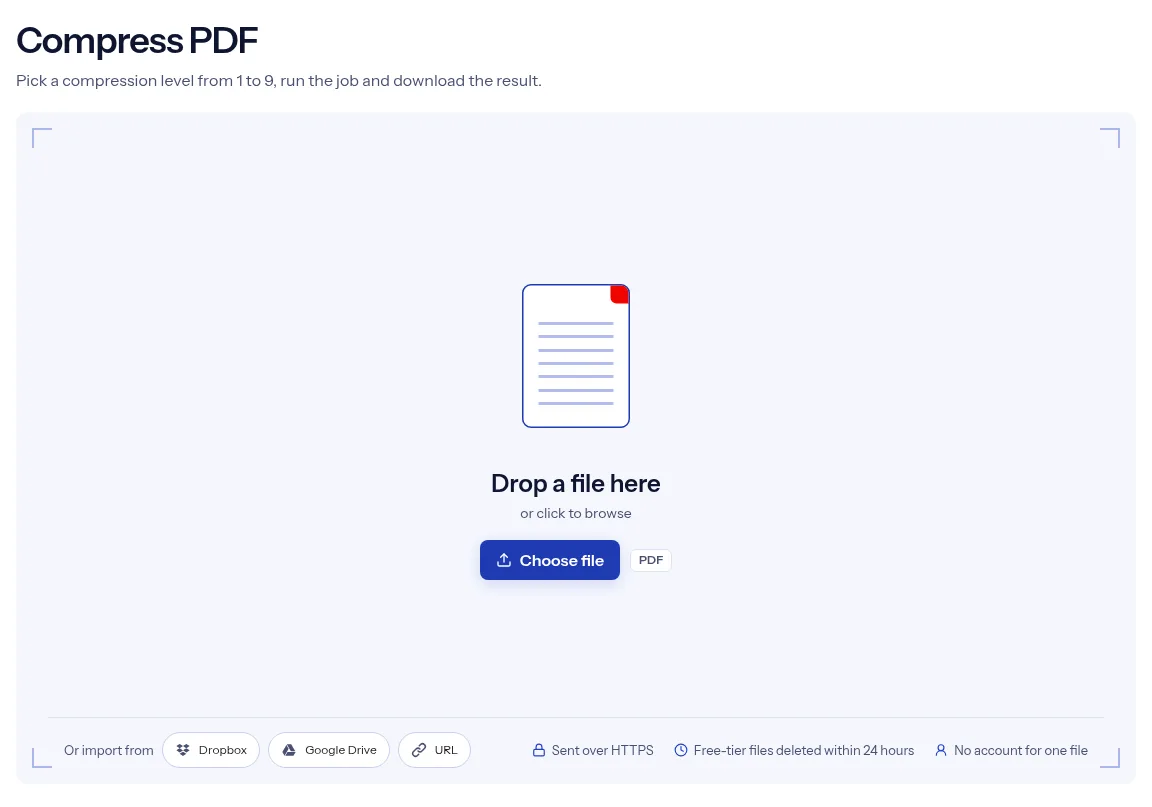
Drop one PDF on the box above, or click it to browse. The file card then shows the file name and size.
Type a number from 1 to 9 in the Compression level field, or keep the starting value of 4.
Press Run Compress PDF and wait for the progress bar to finish. Then press Download to save the new file.
The page does one job and shows you every setting it uses. You get a single control, the compression level, and its label tells you which end keeps quality and which end saves space. You can run one file without creating an account. The file travels over HTTPS, and on the free tier it is deleted automatically within 24 hours after the job finishes. The page is also plain about what it cannot promise. There is no fixed reduction, because the saving depends on what your document contains. When a level alone is not enough, the related tools below remove pages you do not need or split a long file into parts.
| What you see | Why | What to do |
|---|---|---|
| The file is barely smaller | It was already optimized, or it is mostly text with few images | Raise the level one step, or drop pages you do not need with Remove Pages. |
| Photos or scans look soft or blocky | From level 4 the images are resized and saved at lower quality | Run the original again at a lower level. A compressed copy cannot get its quality back. |
| It is still over the size limit at level 9 | The content itself is too large for one file | Cut it into parts with Split PDF. |
| The file asks for a password | The page cannot enter a password | Remove it with Unlock PDF, then compress the open copy. |
| The download is the same size or does not open | The file may be damaged, and a failed compression step returns the PDF unchanged | Try Repair PDF, then compress again. |
Your mail provider rejects a PDF that is over its attachment limit. A higher level can bring the file under the cap so it goes out as a normal attachment.
Job, visa and school portals often cap the size of each upload. Compress the scan of your documents until the portal accepts it.
A report full of charts and screenshots is heavy to pass around. A lighter copy is easier to post in chat or to download on mobile data.
Facts checked on October 15, 2026
No tool matches that search.
Start with 4, the value the field opens with. If the result is still too large, run the original again at a higher level. If images look rough, drop to a lower one.
There is no fixed figure. The saving depends on what the document contains, so compare the size on the file card with the size of the download.
It can. The level field states that 1 keeps the most quality and 9 makes the smallest file, so quality drops as the number rises. Read the result on screen before you send it.
No. The tool accepts a level from 1 to 9 and has no size field. To get under a cap, step the level up and check the download each time.
Not directly. This page does not ask for a password, so take the protection off first and then upload the file.
Either the file had little left to squeeze, or the compression step failed and the job returned your PDF as it was. Try a higher level, and if nothing changes, run the job again later.
No, one job runs without signing in. An account and paid plans raise the limits.
The upload starts when you press Run, over an HTTPS connection. On the free tier, indox deletes the file automatically within 24 hours after the job finishes.
Personal Gmail accounts allow 25 MB of attachments per message, according to Google's help page. Work and school accounts follow the limit their administrator sets. If your PDF is over the limit, compress it and check the size of the download.
A scan is a stack of page pictures. From level 4 the tool resizes pictures and saves them again at lower JPEG quality, so scans change more than text pages do. Run the original at a lower level if the result is too rough.