Run it without any setup
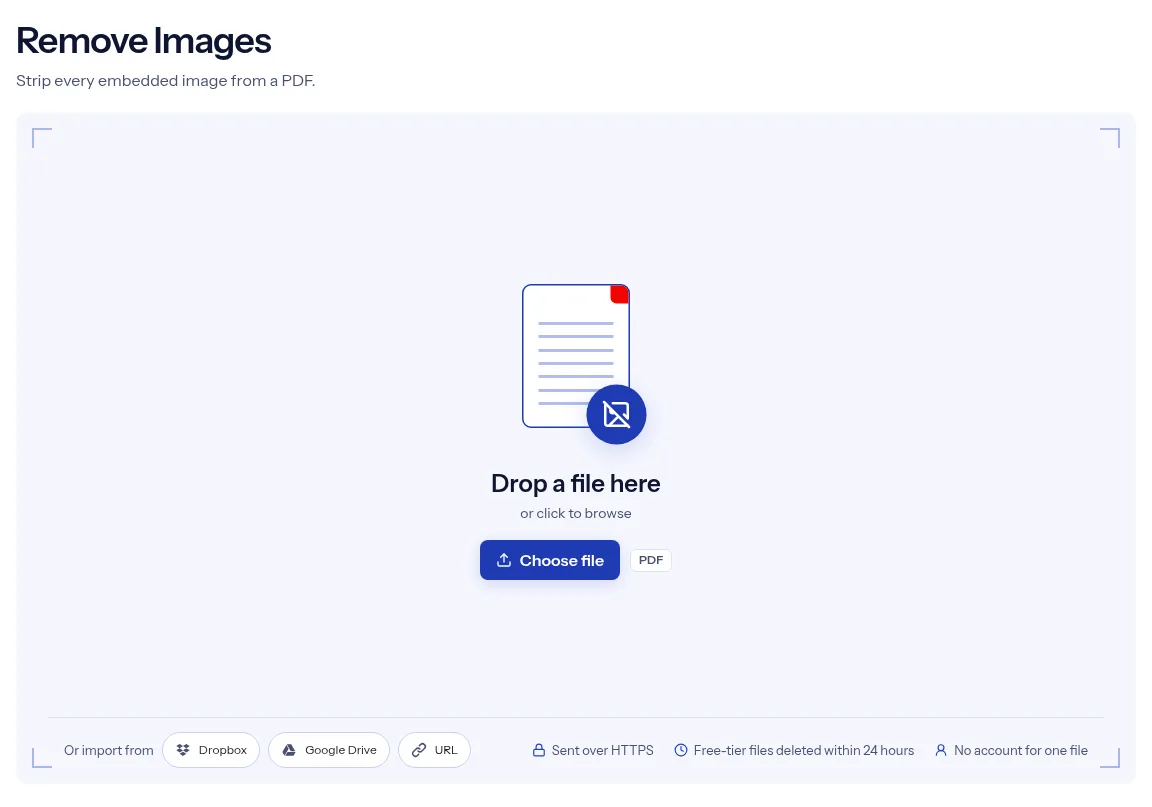
After you add a file, the options panel shows the output format, PDF, and has nothing for you to fill in. Press Run Remove Images and the job starts.
or drop a file anywhere here
Files other than PDF are converted first. Signing in raises the size limit.
Removing images takes the pictures out of a PDF and returns the document without them. This page has no settings. You add one PDF, press the run button and download one PDF. The request the page sends carries a single instruction, to remove the images, and it covers the whole file. There is no list of pictures to tick and no way to keep the logo while dropping the photos. That makes the tool a fit for a text-only copy to read or print, and a poor fit when a few images must stay. To save the pictures before they go, run Add / Extract Images first, which returns them in a ZIP.
After you add a file, the options panel shows the output format, PDF, and has nothing for you to fill in. Press Run Remove Images and the job starts.
The job covers the whole document. Pictures on all pages are handled in a single run, so you do not work through the file page by page.
The result is one PDF. Use the Download button once the page reports that your file is ready.
The tool works on the uploaded copy and returns a new file. The PDF on your device still holds every picture, so nothing is lost if the result is not what you wanted.
Drop the document with the pictures on the upload box, or press Choose file and select it.
Nothing needs to be set. If some pictures must stay, stop here, because the job removes them all.
Press Run Remove Images, wait for the progress bar, then choose Download and page through the result.
With no settings there is nothing to get wrong: the page sends one instruction and returns one file. That also makes the limits easy to state, and this page states them. The tool removes images across the whole document and offers no selection, no preview and no count of the pictures it found. One PDF can be processed without an account. It travels over HTTPS, and on the free tier the upload and the image-free copy are deleted automatically within 24 hours after the job finishes. Your own file is not altered, so you can open the two versions side by side and decide which one to share.
| What you see | Why | What to do |
|---|---|---|
| Some graphics are still there | Only image objects are removed. Vector artwork is drawn from shapes and is not stored as an image | Check the result. To remove artwork, edit the source file. |
| Pages came out almost empty | A scanned PDF stores each page as one image, so removing the images removes the page | Use this tool on PDFs whose text is real text. A scan has nothing else to keep. |
| You wanted to keep one logo and drop the rest | The job is all or nothing | Edit the source file, or drop whole pages with Remove Pages. |
| You only wanted a smaller file | Deleting images is permanent and removes them everywhere | Compress PDF shrinks the pictures and keeps them. |
A report full of photos uses a lot of ink. A copy without pictures leaves the words to print.
Decorative pictures in an article or manual can get in the way on a small screen. An image-free copy leaves the words to scroll through.
Photos in a draft may not be cleared for sharing yet. Open the result, confirm the pictures are gone, and keep the full version in house.
Facts checked on October 16, 2026
No tool matches that search.
Add the PDF at the top of this page and press Run Remove Images. There is nothing to configure. Download the image-free PDF when the job is done.
No. The page sends one instruction for the whole file and has no list of pictures to pick from.
No, there is no page field. Images on every page are part of the job.
Not from the result. Your original file still has its pictures, so keep it. To save the pictures as separate files, run Add / Extract Images on the original, which gives you a ZIP.
No setting separates a photo from a scanned page. If your PDF came from a scanner, run a copy first and look at what is left.
This page makes no promise about size. When a smaller file is the goal, use Compress PDF, which has compression levels from 1 to 9.
One file can be processed without signing in, since Remove Images is a free tool.
It is sent over HTTPS for processing. On the free tier the upload and the image-free result are deleted automatically within 24 hours after the job finishes.