Strip JavaScript
Remove JavaScript is ticked by default. A PDF can carry scripts that run when the file is opened or a form is used, and this box asks the engine to take them out. Show JavaScript lists the embedded scripts if you want to look first.
or drop a file anywhere here
Files other than PDF are converted first. Signing in raises the size limit.
Sanitizing a PDF means stripping out parts of the file that can run code, carry extra files or reveal details about the document. This page offers five removals as checkboxes: Remove JavaScript, Remove embedded files, Remove metadata, Remove links and Remove fonts. The first two are ticked when the page opens and the other three are not. indox passes your choices to its PDF engine and returns the result as a new PDF. The tool carries the Pro badge in the indox catalog. It does not report what it found or removed, so this page also shows how to inspect a file with other indox tools.
Remove JavaScript is ticked by default. A PDF can carry scripts that run when the file is opened or a form is used, and this box asks the engine to take them out. Show JavaScript lists the embedded scripts if you want to look first.
Remove embedded files is ticked by default too. It targets files attached inside the PDF, such as a spreadsheet tucked into a report. List Attachments shows what is embedded, and Extract Attachments saves those files before you strip them.
Remove metadata starts unticked, so a default run leaves the document details in place. Tick it when those details should not travel with the file. To change them instead, Edit PDF Metadata sets the title, author, subject and keywords.
Remove links and Remove fonts stay off until you tick them. Links are how a reader jumps to a site or another page, and fonts hold the letter shapes that text is drawn with, so read the whole result after you use either box.
| You want to | Tick | Check after |
|---|---|---|
| Send a form or report without scripts | Remove JavaScript | Open the result and use any form fields once. |
| Share a PDF without files tucked inside it | Remove embedded files | Use List Attachments on the result to see that none are left. |
| Share a PDF without the author and title fields | Remove metadata | Open Document Properties in a viewer. XMP metadata is not touched by this page. |
| Make links inert | Remove links | Click a link in the result. |
| Strip every optional part | All five | Read every page. Without fonts, text may not show. |
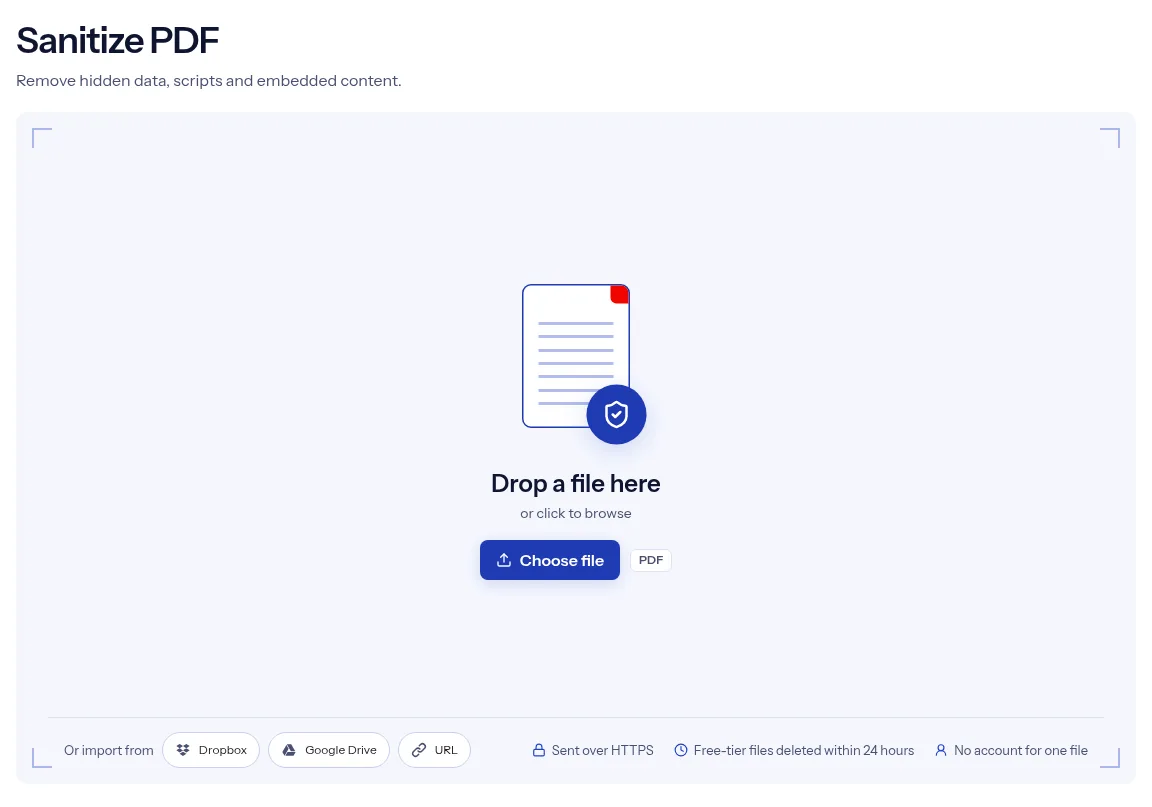
Drop one PDF on the upload box or press Choose file. Use Replace on the file card if the wrong document is showing.
Keep Remove JavaScript and Remove embedded files ticked, or clear them. Tick Remove metadata, Remove links or Remove fonts if you want those gone as well.
Press Run Sanitize PDF. When the result card appears, choose Download and open the copy to confirm it still reads correctly.
Each removal is its own checkbox, labeled with the thing it removes, so you can see what a run will ask for before you start it. The two defaults cover scripts and attached files, and the other three stay off until you decide you need them. If the PDF engine is unavailable or reports an error, the job fails with a message and does not hand your original back marked as done. Your PDF reaches indox over an HTTPS connection. This page does not claim that a sanitized file is safe to open.
| What you see | Why | What to do |
|---|---|---|
| The text vanished or looks wrong | Remove fonts deleted the font entries the text draws with | Run the original again with Remove fonts unticked. |
| The author and title are still there | Remove metadata is off by default, and XMP metadata is never touched here | Tick Remove metadata. To set new values instead, use Edit Metadata. |
| A form field no longer does anything | Remove JavaScript clears scripts that fields use for checks and calculations | Run again with that box unticked, or fill the form first with Fill PDF Form. |
| You want to read the scripts before they go | The job gives no list of what it removed | Look first with Show JavaScript. |
| The file asks for a password | The page has no field for one | Remove it with Unlock PDF, then sanitize the open copy. |
A file arrives from an unknown sender or an old archive. Strip its scripts and attachments before you pass it to colleagues, and still treat it with care.
A report is about to go on a website. Tick Remove metadata as well, so the job also asks for the stored document details to be removed from the published copy.
A portal or records system refuses PDFs that contain scripts or attachments. Run the file here, then confirm with Show JavaScript and List Attachments before you submit it.
Facts checked on October 16, 2026
No tool matches that search.
JavaScript and embedded files. Those two boxes are ticked when the page opens. Metadata, links and fonts stay in the file unless you tick their boxes.
It asks for the kinds of content you ticked to be removed, and that is all the tool does. It gives no verdict on the file, so keep your usual care with documents from unknown senders.
The tool gives no report. Run Show JavaScript and List Attachments on the original and again on the download, then compare the two results.
The default boxes target scripts and attachments, not page content. Remove links and Remove fonts act on things a reader uses or sees, so read the result through if you tick them.
Only if you tick Remove metadata. The box is clear when the page opens, so a first run with the starting settings does not ask for metadata to be removed.
The job is still sent to the engine with every removal switched off, so do not expect anything to be stripped. Nothing on the page stops you.
It carries the Pro badge in the indox tool catalog, where the badge filter reads Pro / Dashboard. Use See prices further down this page for the current plans.
You see an error and a Try another button, and no file is produced. indox does not return the original PDF as if it had been sanitized.